A PDF is built for page layout and printing. Converting a page to an image trades away selectable text, searchability, and vector sharpness at arbitrary zoom, in exchange for a file that opens instantly anywhere. Whether that is a good trade depends on what happens to the file next — and on the resolution you get, which is the part most guides never mention.
The resolution you actually get
PDF pages are measured in points, and there are 72 points to an inch. The PDF Converter renders each page at a scale factor of 2, which works out to 144 DPI. So a standard A4 page comes out at 1190×1684 pixels.
| Page size | Points | Output pixels at 144 DPI |
|---|---|---|
| A4 | 595 × 842 | 1190 × 1684 |
| US Letter | 612 × 792 | 1224 × 1584 |
| US Legal | 612 × 1008 | 1224 × 2016 |
| A3 | 842 × 1191 | 1684 × 2382 |
PNG or JPG? The answer is not the usual one
People reach for JPG out of habit, because for photographs it is dramatically smaller. A document page is not a photograph. It is mostly flat white with hard-edged black text — precisely the content JPG handles worst and PNG handles best.
We rendered this synthetic report page at the exact size the converter produces and measured both outputs:
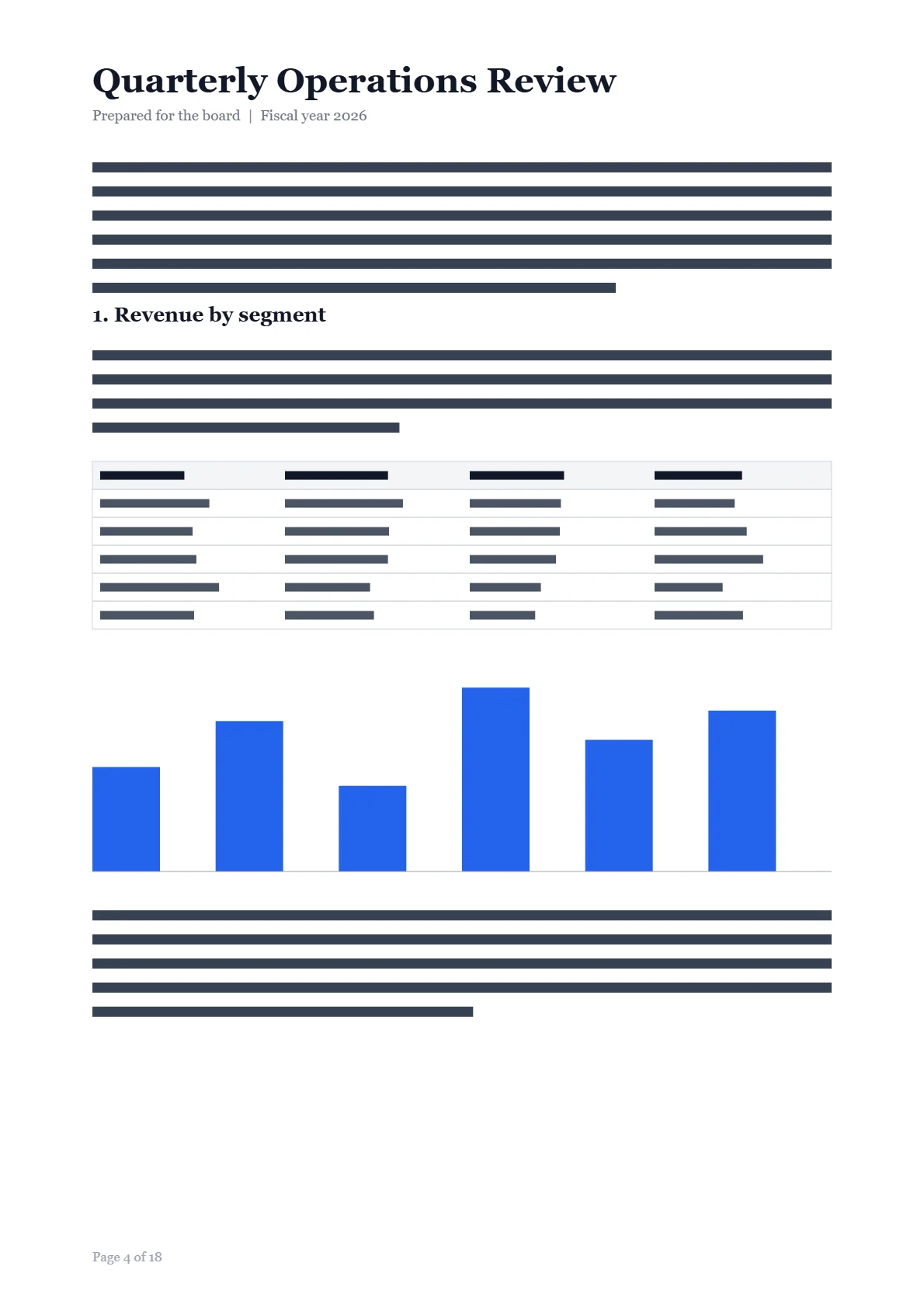
| Output | Size | Notes |
|---|---|---|
| PNG | 79 KB | Lossless — text edges stay crisp |
| JPG (quality 0.95) | 117 KB | 1.5× larger than PNG, and lossy |
For the curious: the converter uses quality 0.95 for JPG output. Lower settings do get smaller — 70 KB at quality 0.6 — but they visibly degrade text, which defeats the point of converting a document you want people to read.
When converting is the right call
Sending an 18-page report when someone needs page 4 makes them hunt for it. A single image opens instantly in any chat app or mail client, with no PDF viewer and no scrolling.
Presentation and word-processing tools handle images far more predictably than embedded PDFs, which can re-flow, lose fonts, or refuse to render at all depending on the viewer.
Kiosks, signage software, older printing workflows, and many ID-verification forms accept JPG or PNG but reject PDF outright. Rendering the page sidesteps the restriction.
Extracting one figure as an image is usually simpler than fighting the PDF's vector layers — and it is the only option at all when the source PDF was built from scanned pages.
Some online editors and submission forms only take image uploads. Converting the relevant page lets you use them without installing anything.
When to keep the PDF instead
- The recipient needs to search or copy the text. Rendering flattens everything to pixels. There is no text left to select, search, or feed to a screen reader.
- It is going to a commercial printer. 144 DPI will look soft in print. The original PDF holds vector text that prints sharp at any size.
- The document is long. A 40-page report becomes 40 separate files. They arrive as a ZIP, but the recipient still has to open them one at a time.
- It needs to stay a legal or archival record. An image of a signed document is not the same artifact as the signed PDF.
Practical limits
The PDF Converter accepts files up to 50 MB and works entirely in your browser, so the document never gets uploaded anywhere. Password-protected or encrypted PDFs cannot be opened and will fail to load — remove the password in whatever tool created the file first. Very long or graphically dense documents take longer and use more memory, because every page is rendered by your own device rather than a server; on a phone, a large report may be worth splitting up. The troubleshooting guide covers what to do when a conversion stalls.
Convert a document with the PDF Converter. If you want the result smaller still, run the PNG through the Image Converter — WebP took this same page down to 21 KB in our measurements.